Registered servers is a great way to manage, categorize and access the SQL servers through SSMS and also one of the overlooked aspects. Registered servers are handy when you want to have all your servers at one place, sorted and categorized in various ways. With registered servers all your instances are just a click away eliminating the need to type the instance name every time you connect. Apart from the aforementioned uses of registered server I have put down other helpful scenarios where registered servers come in handy.
- Easy to share among the team members and which is especially helpful for a newly hired DBA with import and export feature.
- Does great job when you want to run a query on multiple servers in one query window. Either you want to check backups for all your production instances or disable a built-in admin login from all your 2005 servers.
- Helps to immediately identify servers’ availability after an outage.
Here are the steps to register individual servers using GUI
From the SSMS, open view and click on registered servers or Ctrl+Alt+G if you are feeling lucky 🙂

You will have an option of creating either a new group or a new server. Here I have chosen ‘New Server Registration’

As you can see here, server name is the actual name/ip address and Registered server name is what you like it to display.

I usually prefer the servers categorized based on the environment as shown below.

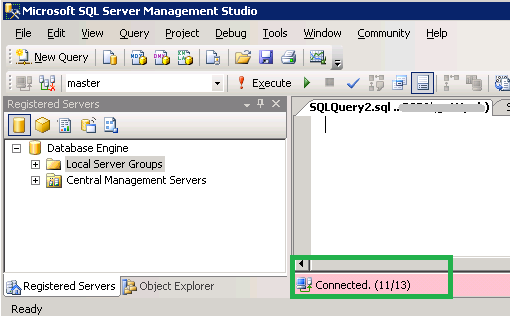
You can right click on any of the groups and open a new query window. That means, a query window is open to execute a query that gets the result from all the servers. The below screenshot shows the number of servers connected. This comes handy when you are checking the servers for connection issues.
Sure, there are hundreds of servers in an organization and adding a server one at a time is probably not a best way to go. This hints us to a way to add multiple entries at a time. Instead of reinventing the wheel again I found a great way to do this HERE
Technical Reviewer(s): Venkata Suresh Raavi; Jaipal Vajrala


 Hareesh G
 Jayapal Vajrala
 Suresh Raavi
 DataGinger.com
I am glad, it helped you. Thanks!