Feeds:
Posts
Comments

Posts Tagged ‘SQL Server 2012’

In SQL Serve 2012, we can get the default data file and log file locations using a simple T-SQL query as below:

SELECT SERVERPROPERTY('INSTANCEDEFAULTDATAPATH') AS [Default_Data_path]
,SERVERPROPERTY('INSTANCEDEFAULTLOGPATH') AS  [Default_log_path]
GO

Sample Output:

Default-Data-Path-Log-path

These parameters INSTANCEDEFAULTDATAPATH & INSTANCEDEFAULTLOGPATH are new in SQL Server 2012 and are not documented yet. Usually undocumented features like these aren’t tested rigorously which is why Microsoft says they are not intended to be used by customers.

Read Full Post »

As of today (5/14/2013) this MSDN article says “SQL Server Agent service startup account must be a member of the SQL Server sysadmin fixed server role”

However, in one of our environments (SQL 2012) I have seen, just a public fixed server role is good enough to start the SQL Agent services and it works very well.

So is the statement mentioned in the MSDN article incorrect? looks like it is..moreover later I figured out the account (either a domain account or built-in system account) used for running any of the SQL Server services may not necessarily have a SQL login at all…sounds interesting?

Before going further on this topic let’s first understand What is a Per-Service SID?

SQL 2008 introduced this new option of SID (Security Identifier), a mechanism that assigns privileges to the SQL service itself, rather than to the account under which the service runs.

So starting SQL Server 2008+ on Windows Server 2008+ here is how Service Configuration and Access Control is managed:

  • SQL Server enables per-service SID for each of its services to provide service isolation and defense in depth
  • This per-service SID is derived from the service name (e.g. Database Engine/SQL Server Agent/SSIS/SSRS..etc) and is unique to that service
  • For example, a service SID name for the Database Engine service might be NT Service\MSSQL$<InstanceName>

Service SIDs managed to improve our security because:

  • Service isolation enables access to specific objects without the need to run a high-privilege account or weaken the security protection of the object
  • By using an access control entry that contains a service SID, a SQL Server service can restrict access to its resources

And here’s my understanding after some research

  • The account (either a domain account or built-in system account) used for running SQL Server services may not necessarily have a SQL login if the Per Service SID has a login instead
  • SQL Server DB Engine and SQL Server Agent runs as Windows services named NT SERVICE\MSSQLSERVER and NT SERVICE\SQLSERVERAGENT respectively within the Windows environment.
  • And the Service Account which we specify to run the services will be used when a process tries to reach outside of the current Windows environment.
  • Hence, the Service Startup Account will be used for off-box operations, unless it’s a built-in account like Network Service or a Virtual Account and if the server is Domain-joined, in which case the Machine Account will be used.
  • On SQL 2012 separate Service Startup account can be eliminated and the SQL Services can run as the “Virtual Accounts”, which have the same name as the Per Service SID, but which also have a system-managed password.

Always remember SQL Server Secuirty is all about Principle of Least Privilege. For more specific information refer MSDN BOL: Configure Windows Service Accounts and Permissions

Read Full Post »

One of the Microsoft’s recommendation for optimizing the tempDB performance is to make each tempdb data file the same size.

Today, on one of our servers, I noticed there are 13 data files with different sizes as shown in the below screenshot:

tempdb1

My target here is to configure tempdb with 8 equi sized data files and one log file. So, in this case I have to delete those 5 extra data files and re-size the remaining 8 files equally.

To achieve this I followed the below simple three step process (The same procedure can be applied to any user databases as well)

-- Step1: First empty the data file
USE tempdb
GO
DBCC SHRINKFILE (tempdev12, EMPTYFILE); -- to empty "tempdev12" data file
GO

Data file won’t gets deleted unless it is empty. So before going to Step2 to delete the data file, we should first empty the data file which can be done from the Step1 above.

Note: If encountered this error Msg 2555, Level 16, State 1, Line 1 while performing the above operation, please refer to this post –> Msg 2555, Level 16, State 1, Line 1 – Error DBCC SHRINKFILE with EMPTYFILE option

--Step2: Remove that extra data file from the database
ALTER DATABASE tempdb
REMOVE FILE tempdev12; --to delete "tempdev12" data file
GO

I repeated the above two steps to delete the other files as well. Below is the screenshot after deleting the extra files

tempdb2

--Step3: Re-size the data files to target file size 
-- Use ALTER DATABASE if the target file size is greater than the current file size
USE [master]
GO
ALTER DATABASE [tempdb] 
MODIFY FILE ( NAME = N'tempdev', SIZE = 3072000KB ) --grow to 3000 MB
GO
--Use DBCC SHRINKFILE if the target file size is less than the current file size
USE [tempdb]
GO
DBCC SHRINKFILE (N'tempdev' , 3000) --shrink to 3000 MB
GO

In my case, the target file size is 3000 MB which is greater than the current file size, so I ran the ALTER DATABASE command for all the 8 files. And below is the screenshot after re-sizing the files

tempdb3

Note: The same procedure can be used for removing extra log files as well. Make sure the log file you are trying to empty do not have any active portion of the log. Run DBCC LOGINFO on your specified database, taking note of the FileId and the Status indicator (2 showing that it is an active VLF)

Read Full Post »

Often times I keep checking the error log to make sure if everything is running fine. Here is an undocumented stored procedure that really helps simplify our task of searching the error log.

Exec XP_ReadErrorLog
GO

This proc has 4 parameters:

  • Parameter 1 (int), is the number of the log file you want to read, default is “0” for current log.
  • Parameter 2 (int), value of 1 reads SQL error logs, value of 2 reads SQL Server Agent logs, default is 1.
  • Parameter 3 varchar (255), is a search string for the log entry, with a default value of NULL.
  • Parameter 4 varchar (255), is another search string for the log entry, with a default value of NULL.

Example searchings:

Exec XP_ReadErrorLog 0
Exec XP_ReadErrorLog 0, 1
Exec XP_ReadErrorLog 0, 1, 'deadlock'
Exec XP_ReadErrorLog 0, 1, 'deadlock', 'MDW'

Update 01/21/2014:


If you are using 2012 SQL Servers, the above might not work, if so please try below

Exec XP_ReadErrorLog 0, 1, "deadlock" (OR)
Exec Master..SP_ReadErrorLog 0, 1, 'deadlock'


Read Full Post »

When an error is raised by the SQL Server Database Engine, we usually see the Severity Level as in the below example:

Msg 5184, Level 16, State 2, Line 1

The severity level of the error indicates the type of problem encountered by SQL Server. Hence looking at the Level we can get a quick idea of what the error is about and if it can be fixed by the user or not.

Below is the table where I tried to put all the Severity Levels in Brief:

Severity level Description
00 – 10 Informational messages – not severe
11  – 16 Indicate errors that can be corrected by the user
17 – 19 Indicate software errors that cannot be corrected by the user. Inform Sys Admin
20 – 24 Indicate system problems and are fatal errors

For more information and for a full table listing Levels of Severity, please refer MSDN BOL

Read Full Post »

Here is a typical scenario every SQL Server DBA faces:  Transaction Log grows unexpectedly or becomes full!!

So, do I need to increase the Log size? Fortunately we have a better solution – SHRINK the log file!

Typically log truncation frees space in the log file for reuse by the Transaction Log thus releasing space and making it not to over grow in size. This truncation occurs automatically when:

  • Database is backed up – under Simple recovery model
  • Transaction log is backed up – under Full recover model

When the database is in simple recovery mode I usually don’t expect the T-log to be blowing out. This happened to me and I figured out this is because of increasing number of uncommitted transactions!

In this case I am running a purge job to purge data from a management data warehouse (MDW) database (about 1600+ GB) which is configured to receive data from multiple instances as part of the MDW Data Collection configuration setup. And below is what I did to overcome this problem.

First I checked the log size and log space used% for every database using the following DBCC command:

DBCC SQLPERF(LogSpace)

After getting to know the log size (around 900+ GB), I shrinked it using the below command to some 800+ MB

USE DatabaseName;
GO
--Truncate the log by changing the database recovery model to SIMPLE 
--(If it?s not already in SIMPLE recovery model)
ALTER DATABASE DatabaseName
SET RECOVERY SIMPLE;
GO
--Shrink the truncated log file to 1 MB 
--(However it won?t shrink a file past the size needed to store the data in the file)
DBCC SHRINKFILE (DatabaseName_Log, 1);
GO
--Reset the database recovery model.
ALTER DATABASE DatabaseName
SET RECOVERY FULL;
GO

Shrinking occurs only when at least one virtual log file (VLF) is free, which means in my case I have tons of inactive VLFs as I am able to shrink it to 800 MB from 900 GB! (amazing isn’t it?)

Please refer BOL for the options above. Also, this can be done using GUI by right clicking on database ->Tasks->Shrink->Files

Here is more information from MSDN BOL:

Read Full Post »

When tried to empty one of the tempdb data file using the below T-SQL command:

(My goal here is to REMOVE the file using ALTER DATABASE command followed by. For more information on removing data/log files, please refer to this post How to Best Remove Extra TempDB Data Files and Log Files)

--To empty 'tempdev12' data file
USE tempdb
GO
DBCC SHRINKFILE (tempdev12, EMPTYFILE); 
GO

I got the below error message:

DBCC SHRINKFILE: Page 9:44720 could not be moved because it is a work table page. Msg 2555, Level 16, State 1, Line 1 Cannot move all contents of file “tempdev12” to other places to complete the emptyfile operation. DBCC execution completed. If DBCC printed error messages, contact your system administrator.

I figured out this is due to the existing connections and existing temp tables. To avoid this we can either

  • Kill all the existing connections to the database OR
  • Re-start the SQL Server

In may case it is not a critical production instance,  so I just restarted the server and it worked.

For more information on how to use SHRINKFILE command please visit my previous post Transaction Log is Full – How to Shrink the Transaction Log

Read Full Post »

Today we got an escalation where on one of the servers ‘Agent XPs’ was in a disabled state. And when looked at SQL Server Agent node, it is displayed in Red which basically indicates SQL Agent Service is not running, however when checked the Agent Services are actually running, which is misleading!

AgentXps

So here is some basic information I gathered about Agent XPs option – only found in SQL Server 2005 and above versions

Summing up from MSDN BOL:

  • When Agent XPs is not enabled (which makes Agent extended stored procedures are not enabled), SSMS does not display the contents of the SQL Server Agent node regardless of the SQL Server Agent service state.
  • Hence, in order to enable the SQL Server Agent extended stored procedures on the server, Agent XPs should be enabled
  • When SQL Server Management Studio tool is used to start the SQL Server Agent service, these extended stored procedures are enabled automatically, which should enable Agent XPs server configuration option.

It is not very clear from BOL what makes Agent XPs setting enable/disable, so I dug more into this and here is some brief notes:

  • I Installed a local instance (SQL 2012) on my machine and did a few test scenarios which confirms that Agent XPs option will be enabled automatically when SQL Agent Services are started, either with Manual mode or Automatic mode.
  • And whenever the SQL Agent service is started or stopped regardless of the SQL Agent start mode (Manual/Automatic), it will enable or disable the Agent XPs respectively.
  • Hence, if SQL Agent is stopped and don’t restart – it will disable the Agent XPs option(even though we enabled the Agent XPs prior to stopping SQL Agent)
  • When the Agent XPs option is disabled, we cannot access any SQL Agent nodes or even its properties from SSMS.
  • Vice-versa, when the Agent XPs option is enabled, we can access SQL Agent nodes and properties from SSMS whether or not SQL Agent services are running or stopped
  • And, from the above observations, it is clear says that Agent XPs option disabled doesn’t mean that SQL Agent services are stopped

Finally from my understanding most of the time Agent XPs option shouldn’t be an issue since whenever the SQL Agent services are started the Agent XPs option will be automatically enabled.

If this option is disabled, either the SQL Agent services never started or Agent XPs option might have disabled due to some reasons.. such as security patching on the servers (which can be enabled anytime using a simple script which doesn’t need Agent/Server restart).

--To check if Agent XPs option is enabled or not 
--(show advanced options must be enabled for this)
EXEC SP_CONFIGURE 'Agent XPs'
GO 
--To enable show advanced options
EXEC SP_CONFIGURE 'show advanced options', 1
GO
RECONFIGURE
GO
--To see advanced options
EXEC SP_CONFIGURE 'show advanced options'
GO
--To enable Agent XPs option
EXEC SP_CONFIGURE 'Agent XPs', 1
GO
RECONFIGURE
GO

Read Full Post »

Before writing this post, even I am not clear about the title of this post. So, I did a test scenario on AdventureWorks2012 sample database to answer the below two questions:

  • Is compressing the Table the same as compressing the Clustered Index on that table?
  • What to compress on a HEAP table and what to compress on a NON-HEAP table?

First let’s check if Compressing the table is the same as compressing Clustered Index or not (I haven’t found much information from BOL). I chosed “Sales.SalesOrderDetail” table from “AdventureWorks2012” sample database for the test.

And below are the test results:

Space Usage rows reserved data index_size unused
prior to compression 121317 17920 KB 10896 KB 6528 KB 496 KB
after compressing Clustered Index (CI) 121317 12224 KB 5240 KB 6528 KB 456 KB
after removing compression on CI 121317 17856 KB 10896 KB 6528 KB 432 KB
after Table compression 121317 12224 KB 5240 KB 6528 KB 456 KB

In conclusion to say a table is FULLY compressed (FULLY in this context I mean compression including data and index space)From the results above, it can be concluded that Compressing the Clustered Index is nothing but compressing the Table itself. And Non-Clustered Indexes has to be compressed separately (as they are separately stored structures)

On a NON-HEAP table we have to compress:

  • Either Clustered Index OR Table AND
  • Non Clustered Indexes (if any)

On a HEAP table we have to compress:

  • Table AND
  • Non Clustered Indexes (if any)

NON-HEAP Table: Table with Clustered Index
HEAP Table: Table with no Clustered Index

Queries Used:

--1. To know the space usage
Exec Sp_spaceused '[Sales].[SalesOrderDetail]'
GO
--2. To compress Clustered Index
ALTER INDEX [PK_SalesOrderDetail_SalesOrderID_SalesOrderDetailID]
ON [Sales].[SalesOrderDetail]
REBUILD
WITH ( DATA_COMPRESSION = PAGE )
GO
--3. To remove the compression on Clustered Index
ALTER INDEX [PK_SalesOrderDetail_SalesOrderID_SalesOrderDetailID]
ON [Sales].[SalesOrderDetail]
REBUILD
WITH ( DATA_COMPRESSION = NONE )
GO
--4. To compress the table
ALTER TABLE [Sales].[SalesOrderDetail]
REBUILD WITH (DATA_COMPRESSION = PAGE)

Read Full Post »

Does a database allows to create multiple mdf files? Let’s check here

Until recently I am on the assumption that a database can only have one data file with the *.mdf extension.

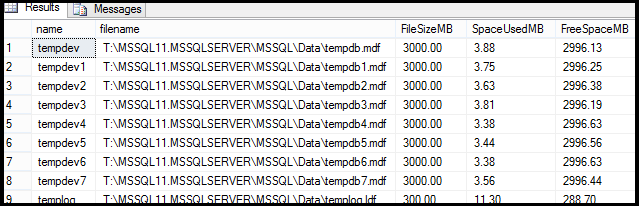
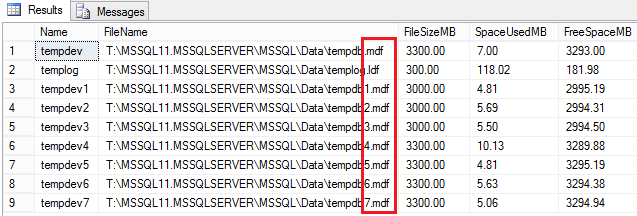
While checking the tempDB configuration on one of our production servers, I noticed tempDB having multiple data files with .mdf extension as shown in the screenshot below.

Can a Database have more than one mdf file 1

However, I expected the tempDB to be having only one .mdf file and multiple .ndf files, which is the way I have been seeing all these years.

To test it by myself (which I always prefer) I tried creating more than one data file with *.mdf extension on a database, and ofcourse YES, it accepted without any issues.

Reason: The primary data file shouldn’t necessarily have to be a .mdf extension

  • A primary data file is the data file associated when first created the database, and YES this can only be one

Does the .mdf/.ndf/.ldf file extensions really matter?

  • NO, SQL Server does not enforce the .mdf, .ndf, and .ldf file name extensions, these extensions help us identify the different kinds of files and their use.

Microsoft’s recommended file name extension for primary data files is .mdf. Similarly for secondary data files is .ndf and for transaction log file is .ldf. However, I can have any extension (something like .xyz) for any file (primary/secondary/log). Please refer to the screenshot below for an example of database created with different FileName extensions.

Can a Database have more than one mdf file 2

So, how does SQL Server know the file we are adding is a data file or log file ?

  • If using GUI, in the File Type we mention either “Rows Data” or “Log”
  • If using T-SQL, ALTER DATABASE DbName ADD FILE… or ALTER DATABASE DbName ADD LOG FILE

In Conclusion: Yes, we can create multiple data files with .mdf extension for a database either on an already existing filegroup or by creating a new filegroup. Generally speaking secondary files have a .ndf extension (not necessarily though!), but you can give it whatever extension you want, and it will work correctly.

Read Full Post »

« Newer Posts

Design a site like this with WordPress.com
Get started